

Why it matters
- Support teams. An agent who looks after a few of your customers can access only those companies.
- Short engagements. A contractor or auditor gets access that ends on its own.
- Review without risk. A finance lead views payrolls, downloads pay stubs, and runs payroll reports. They can’t approve a payroll or change any records.
- Your own tools. Your support or identity tools add people and set their access through the API.
Invite your team
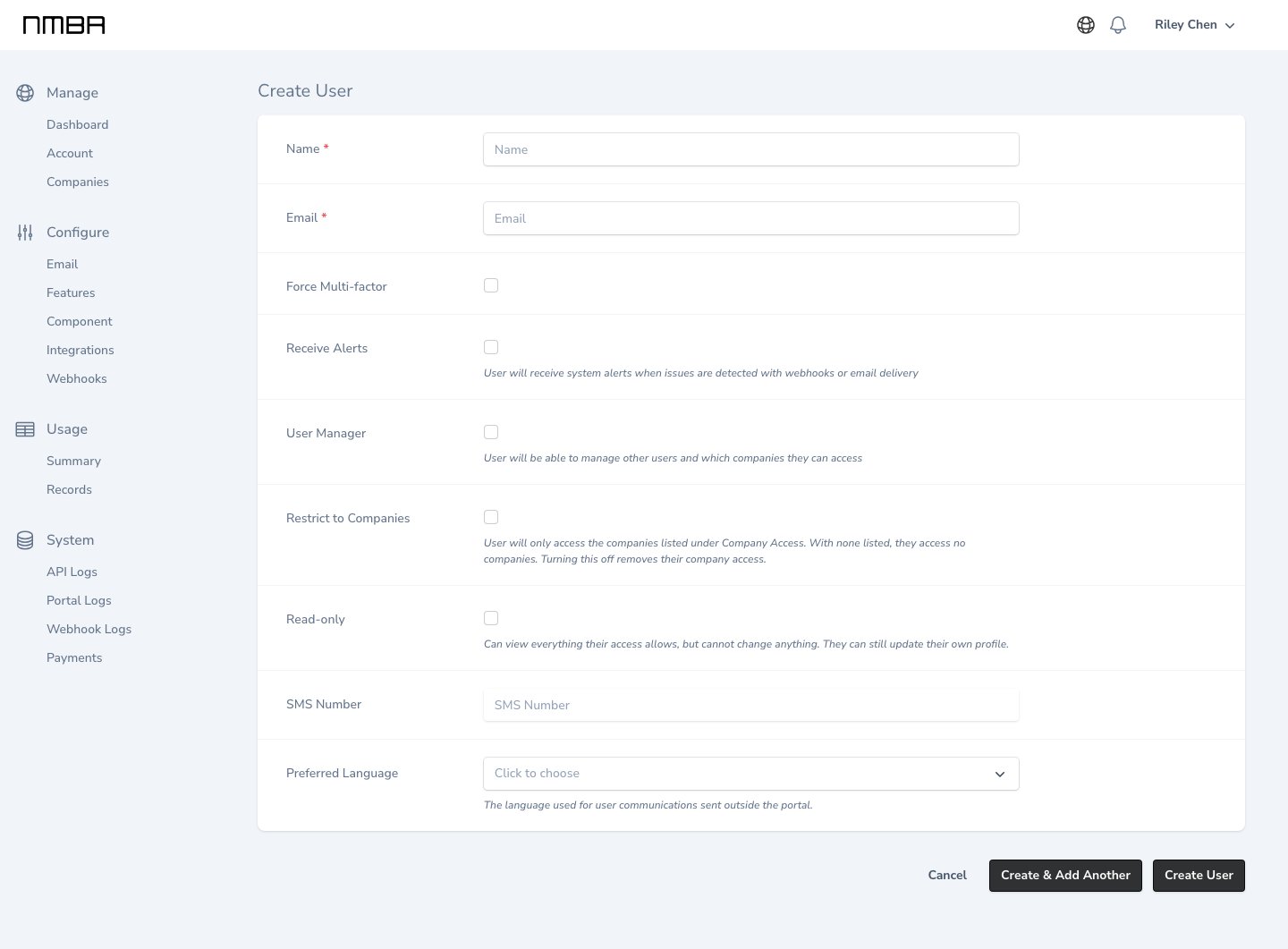
User managers add people from Account in the sidebar, under Users. Choose Create User and enter their name and email. Each new person gets an email invitation to set their own password. The link works for 7 days. If it expires, open the person and choose Resend invitation from the actions menu. You can also set:- Force Multi-factor to require a sign-in code by text message. Add their mobile number in SMS Number.
- Receive Alerts to email them when webhook or email delivery has a problem.
- Preferred Language for the emails they receive.
Choose what each person can do
Each person has one of two levels:- Write views and changes everything their company access allows.
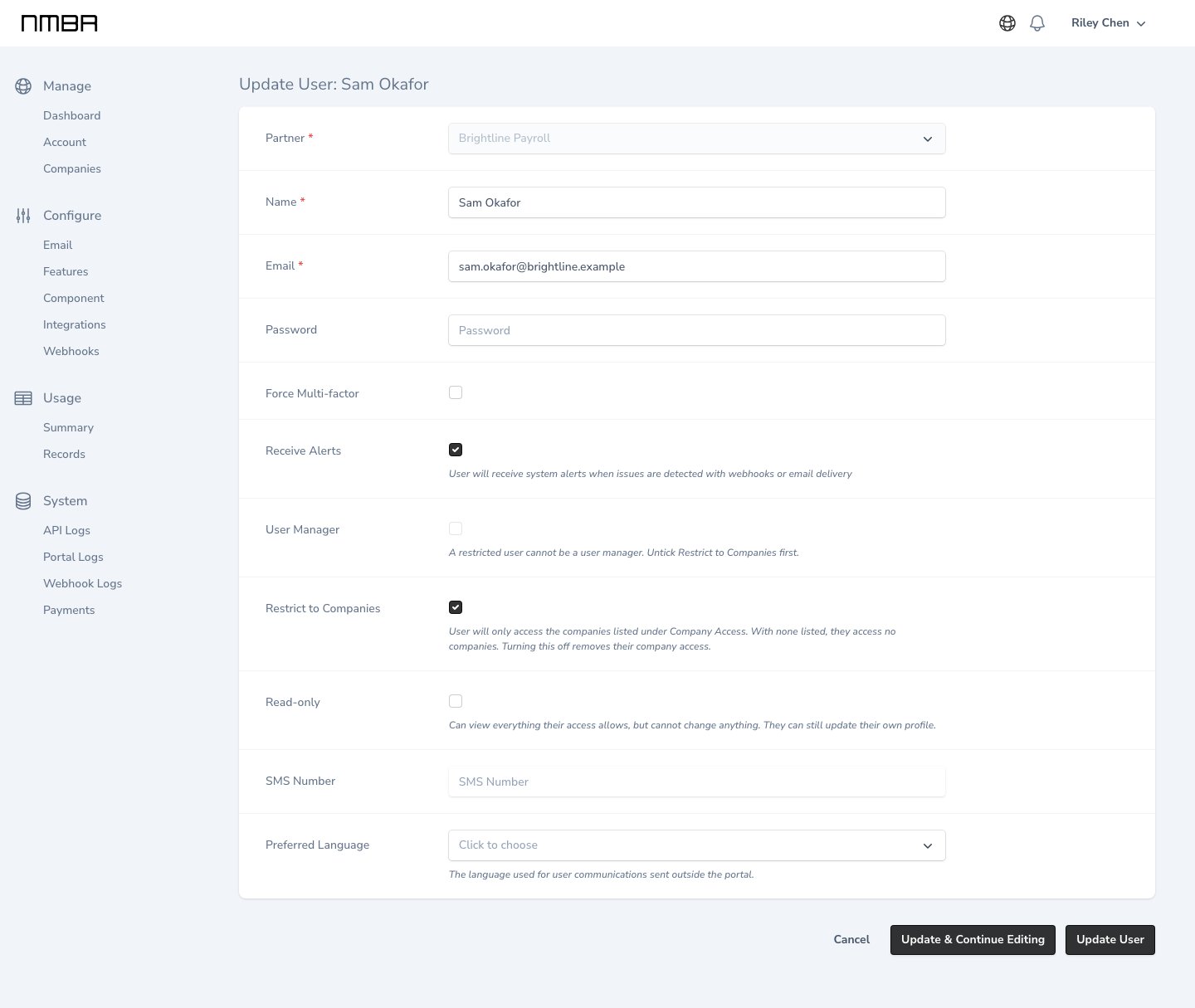
- Read views, runs reports, and downloads pay stubs and forms. They can’t create, change, or delete anything. Turn on Read-only to give someone this level.
Choose which companies each person can access
A person can access every company on your account until you restrict them. To limit someone to specific companies:- Edit the person and turn on Restrict to Companies.
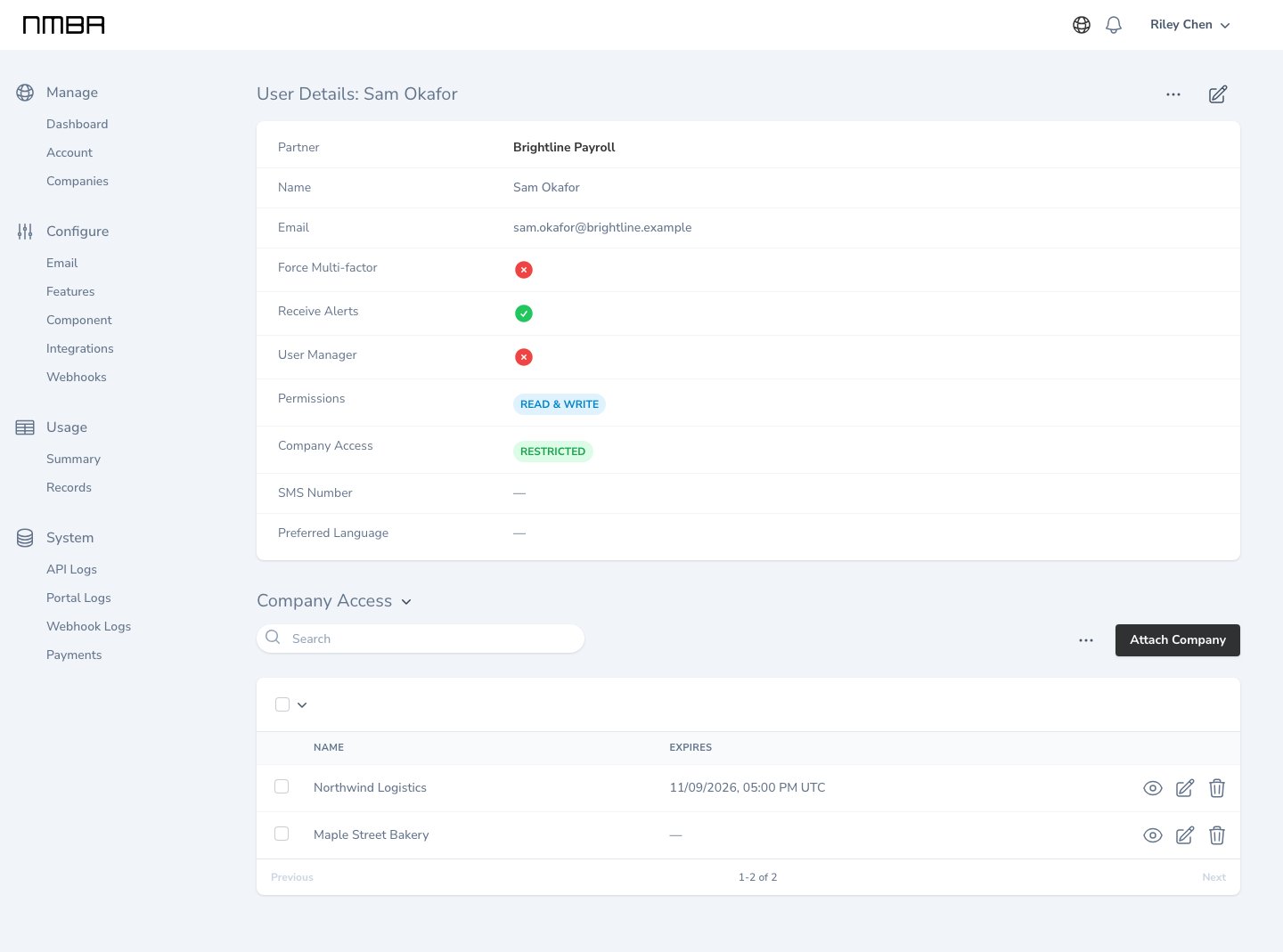
- Open the person and choose Attach Company under Company Access.
- Pick the company and how long the access lasts.
Give access for a limited time
When you attach a company, Access for sets how long it lasts: Forever, 1 hour, 24 hours, 7 days, or 30 days. The person’s Company Access list shows when each company’s access ends, and it ends at that time on its own. To extend access, edit the company in the list and choose a new length, counted from now. To end it now, detach the company. To set an exact end date, use the API (see Manage access from your own tools).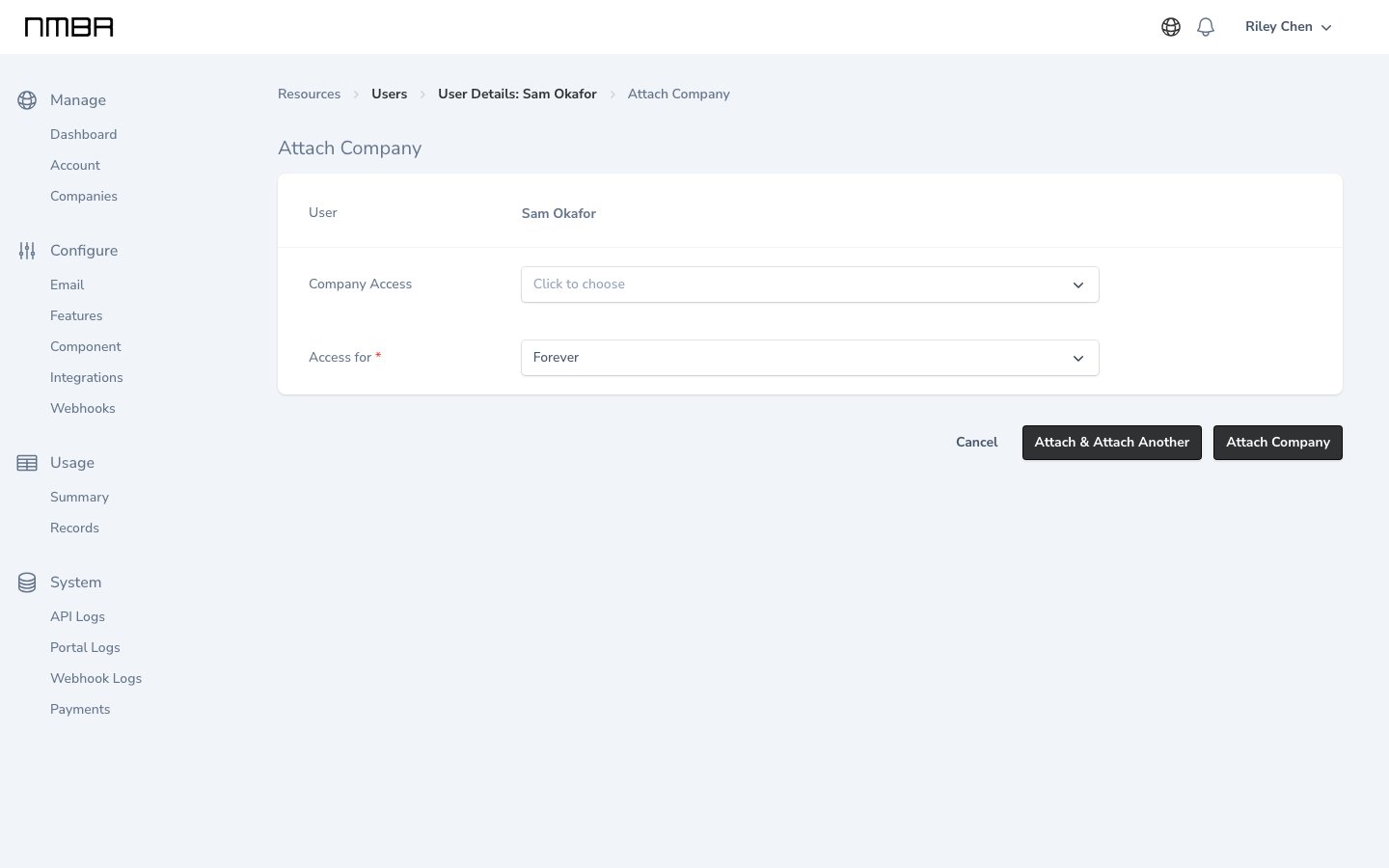
Settings shared across your account
Some pages apply to your whole account. Restricted people see them too.See who has access at a glance
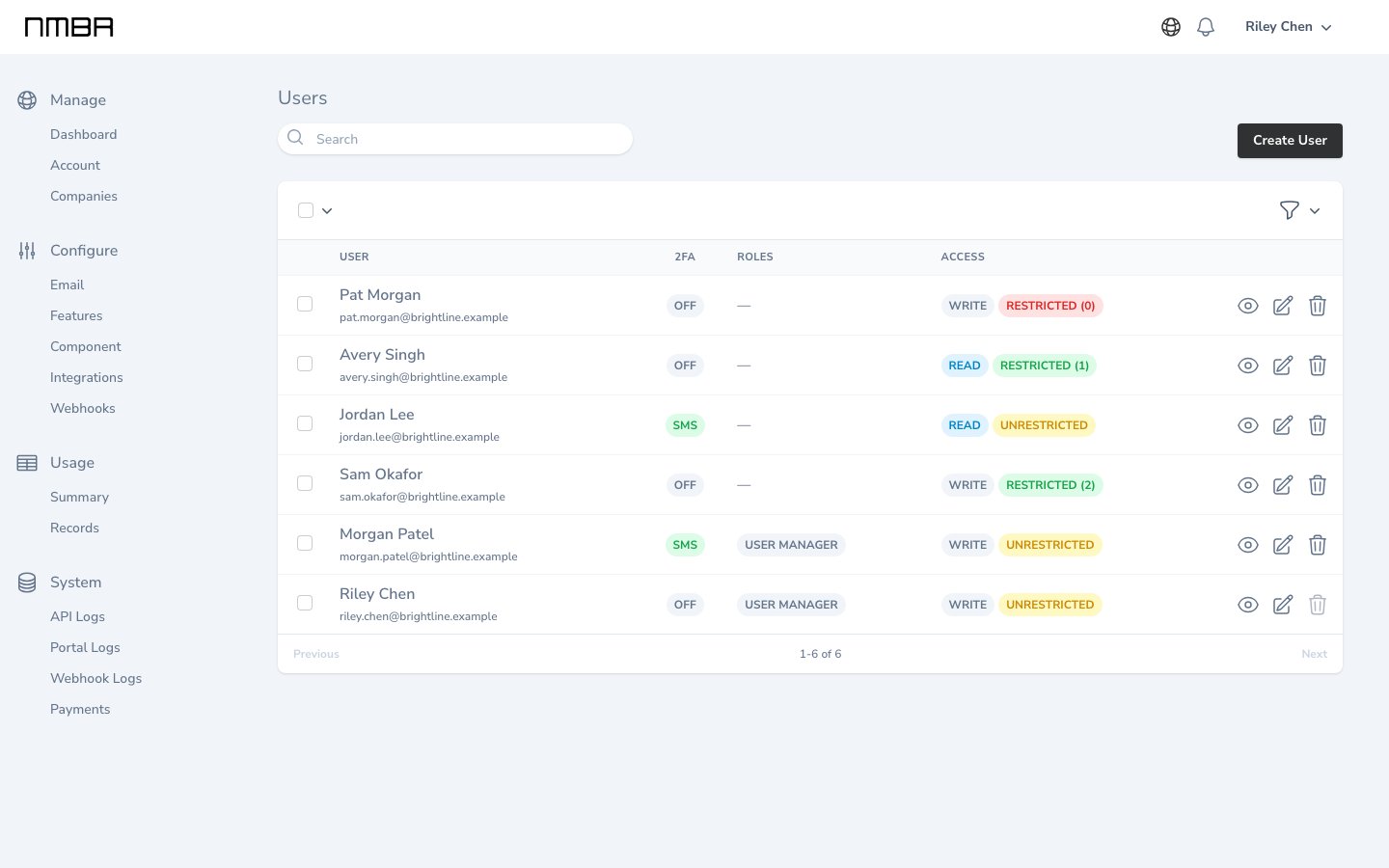
The Users list shows each person’s sign-in method, role, and access:- 2FA shows
SMSwhen sign-in codes are on, andOffwhen they’re not. - Roles shows
User managerfor people who manage your team. - Access shows two badges. The first is
ReadorWrite. The second isUnrestricted, orRestrictedwith the number of companies the person can access.Restricted (0)appears in red because that person can’t access any companies.
Manage access from your own tools
The Nmbr API manages the same people and access as the Portal. Use your partner secret to connect access to your own support or identity tools.- Create a user to add someone and send their invitation. Set
is_read_only,is_restricted, andis_user_managerin the same request. - Resend an invitation when the link has expired.
- Update a user to change their level or role, and delete a user when they leave. Deleting a person ends their company access.
- Grant a company to a restricted person. Send
expires_atin UTC to end the access at a set time, or leave it out for access that doesn’t end. - Change when access ends to extend access or make it permanent, and revoke company access to end it now.
- List users with the
emailfilter to find a person, and list a user’s company access to see the companies they can access.